
File QR Code Converter: Share Your Files in a Scan
 By Vall V.
Table of Contents
- How to convert a file to a QR code with QR TIGER
- Files you can convert into a QR code using a file QR code generator
- How to switch the file format or the content of your QR code
- Benefits of dynamic QR codes for files
- Guidelines to follow in your file QR code design
- QR TIGER: Your trusted file to QR code converter
- Frequently asked questions
How to convert a file to a QR code with QR TIGER
Here's how to convert your file into a QR code using a QR code generator for files:
- Go to QR TIGER website. Log in to your account or sign up if you don't have one yet.
- Select the File QR code and upload your file. Then, click Generate dynamic QR code.
- Customize your QR. Add a logo, select colors, eyes, patterns, add a frame with a CTA.
- Run a test scan to make sure that your code is working.
- Download in PNG or SVG, print, and share your custom file QR code.
QR TIGER is the leading PDF to QR code converter. It has extensive customization tools for modifying QR code designs and making QR codes attractive and branded.
It is certified to ISO/IEC 27001:2022, ISO/IEC 27001-certified and GDPR-ready, so you can guarantee that your confidential data is safe.

Files you can convert into a QR code using a file QR code generator
Using a file QR code solution can turn all your file formats into QR codes in just seconds:
Word documents to QR codes

 Ever tried sharing video presentations for work or school?
 Now, users can view and download your MP4 file by scanning the QR code for the MP4 file. This QR code saves you from the hassle of manual sharing.
You can also use this QR code solution to embed a video advertisement, adding a digital dimension to your traditional marketing campaigns.
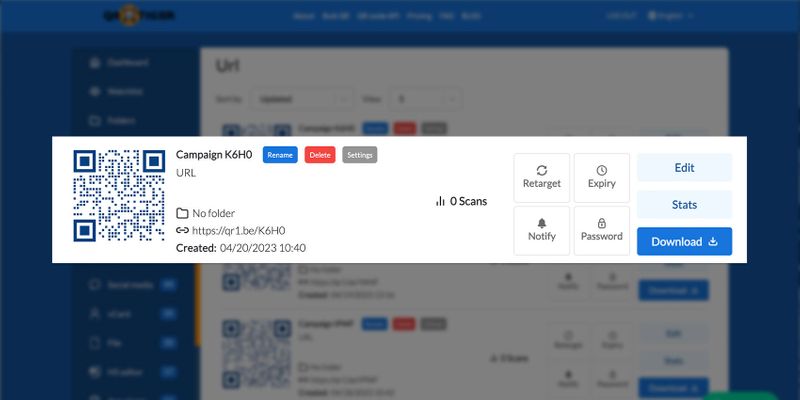
With QR TIGER, you can edit more than just the QR code content. You can also edit your existing QR code design using the newly added Edit QR design feature.
To do so, simply select the dynamic QR you want to edit in your Dashboard. Click Settings, then Edit QR design. Once changes are made, click Save.
Track your QR code scans
File QR codes are dynamic QR codes with tracking capabilities. This feature helps in monitoring the usage of your QR codes.
You can track the total number of QR code scans, the scanner’s location, the scanning time, and the device’s operating system.
Add passwords
QR TIGER allows users to add passwords to their file QR codes, ensuring that only intended individuals can access the file.
Users must enter the correct password first before they can access the file stored in the QR code.
This is highly recommended for places that handle confidential and sensitive information, such as government offices, banks, and workplaces.
Expiry feature
The best QR code generator lets you set an expiry time or date. You can also let your QR code expire after it reaches a particular number of scans. This feature helps shops and stores run limited-time promotions.
Say you have a file QR code that leads to a discount voucher. With the expiry feature, you can limit the number of buyers who can avail of it.
Email scan notification
Want to stay updated on what's happening to your QR code? You can enable the email scan notification to receive reports on QR code scans directly in your inbox. Set it on a daily, weekly, or monthly basis.
Guidelines to follow in your file QR code design
Customize your QR code
When making a QR code for a PDF, customize your QR code by adding colors and changing the eyes and frames so it looks more appealing to users. You can also add your brand logo to help users identify your QR code.
It gives your QR code a unique and professional look and boosts brand awareness.
Make sure your QR code image is clear before deploying it.
With the best QR code generator, you can download your QR code in SVG format to guarantee its quality when printed.
Do not invert the colors of your QR code
When customizing your QR code, make sure to use dark colors for your pattern and light colors for your background. The contrast will help improve its readability.
Inverting these colors, on the other hand, can affect your QR code’s quality, leading to scanning errors.
Correct sizing of your QR code
The recommended size when printing QR codes for a file is 32 mm by 32 mm (1.25 inches by 1.25 inches).
Meanwhile, the suggested QR code size for public and street advertising is one-tenth of the scanning distance (10:1).
For materials requiring a scanning distance of 20 meters, such as billboards, your QR code should be 2m by 2m so people can still scan it.
Put a call to action
Adding a compelling call to action (CTA) to your QR code can draw your target audience's attention and encourage them to scan it.
Your CTA should guide users on what to do with your QR code and convey a sense of urgency so they won’t think twice about scanning your QR code.
Consider its placement
Know where you want to place your QR code print materials, as their placement can affect QR code engagement.
Place your posters with QR codes where many people can see them, such as on lampposts along sidewalks, at terminals, and in parks.
QR TIGER: Your trusted file to QR code converter
Convert the file to a QR code to make sharing files faster and easier.
You’ll only need to send the QR code image; no need to send the file itself.
And to guarantee the quality, use QR TIGER.
It has impressive customization features and advanced features for dynamic QR codes.
It is ISO/IEC 27001-certified and is trusted by over 850,000 brands worldwide, like TikTok, Disney, Cartier, and PepsiCo.
Streamline the way you share your files. Visit the best QR code generator with the logo today.

Frequently asked questions
How to turn a file into a QR code?
Turn a file into a QR code using a file QR code generator. Using QR TIGER online, upload the file and simply generate your code.
Can you save a file as a QR code?
Yes, you can save your file as a QR code. Simply convert your file to a QR code using a QR code software. It's simple to use QR TIGER's file QR code solution.
Can I change the file QR code content from PDF to a Word document?
Yes, you can change the current file or content in your QR code and replace the PDF with a Word document or any other supported file format (JPEG, PNG, MP4, or Excel file). To change, go to your File QR, click Edit, and upload the new file. Save the changes so that when it's scanned, the QR code will show the new content.
png_800_75.jpeg)
This article is for general informational purposes only and does not constitute legal, financial, or other professional advice. For questions about QR TIGER's products or services, please contact our support team at [email protected].
Frequently Asked Questions (FAQ)
How to turn a file into a QR code?
Can you save a file as a QR code?
Can I change the file QR code content from PDF to a Word document?
Was this article helpful?
Maximize Scans with the Best QR Code Generator
Join thousands of global brands using QR TIGER to manage dynamic routing, bulk creation, and deep attribution analytics.
Get Started For Free