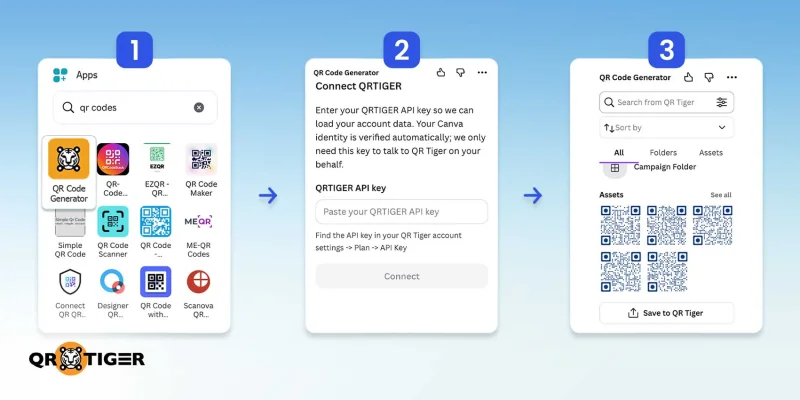
To create a QR code, open an existing or new design on the platform, search for Canva’s official QR code tool in the Apps, enter the destination URL, customize it, and generate the code.
You can use Canva’s dynamic QR code integration with QR TIGER to directly add your existing codes to your projects.
Disclosure: This guide was last updated on August 13, 2026. Check the official Canva website for the latest features, availability, and terms.
At a glance
Canva QR codes are generated through Canva’s QR app. It allows you to turn a web link or a destination URL into a square-shaped 2D barcode that people can scan with their smartphone cameras.
Canva’s free QR code generator can create static and dynamic QR codes for URLs with a few customization options.
To directly access and add your QR TIGER QR codes in Canva, go to apps, search for “QR TIGER,” copy your API Key, enter it in Canva, and connect.
The types of dynamic QR codes you can attach to your Canva designs are URL, vCard, file (PDF, Microsoft Word, or Excel), audio, video, menu, social media, landing page, and smart redirect.
Canva’s QR code is a Quick Response (QR) code generated in Canva’s editor that you can place directly on new or existing designs or projects.
The QR code can lead users to a webpage, form, product page, or any URL-based destination when they scan it with their smartphones.
On Canva’s QR code maker, you can customize the QR code colors, patterns, and corner styles, and add a logo for better recognition.
Note: To add a custom logo to a Canva QR code, you need a Business or Enterprise subscription. Legacy users can choose from a preset of logos, while Free and Canva Pro users can only access the Canva icon by default.
How to create QR codes in Canva (Built-in method)
Follow the guide to learn how to generate a QR code in Canva’s built-in QR code tools and locate them:
From Apps
Static QR code:
1. Go to your Canva account.
2. Create a new design or open an existing project.
2. On the side panel of the editor, select Apps and search for “QR code.”
3. Select the first “QR code” app.
4. Paste the web link or URL that you want to share.
5. Customize the QR code design (colors and margin).
6. Click “Generate code.”
7. Adjust the placement of the code in your design.
6. Go to “Share,” click download, and select a format to export.
Dynamic QR code:
1. On the Apps, search for “Dynamic QR code.”
2. Select the first “dynamic QR code” app.
3. Select a pattern.
4. Paste the web link or URL. Add a name for the QR (optional).
5. Customize the QR code design.
6. Click “Save.”
7. Adjust the placement of the code.
9. To export, go to “Share,” click " Download, and select a format.
From Elements
Static QR code:
1. On the sidebar of the Canva editor, select Elements and search for “QR code.”
2. Select “Create static.”
4. Paste the web link or URL that you want to share.
5. Customize the QR code design (colors and margin).
6. Click “Generate code.”
7. Adjust the placement of the code in your design.
6. Go to “Share,” click download, and select a format to export.
Dynamic QR code:
1. Under Elements, search for “QR code” and select “Create dynamic.”
2. Select a pattern.
5. Paste the web link or URL. Add a name for the QR (optional).
6. Customize the QR code design.
7. Click “Save.”
8. Adjust the placement of the code.
9. To export, go to “Share,” click " Download,” and select a format.
Static and dynamic QR codes in Canva
The official Canva QR code generator can create both static and dynamic QRs for URLs or web links. They are free to use, have no creation or scanning limitations, and support basic customization.
Static QR code - Canva’s static QR codes allow users to customize the QR code color (background and foreground) and margin. Users can edit the destination link or replace the code directly in-platform; the change won’t apply to printed copies or other existing copies on other projects.
Dynamic QR code - Canva’s dynamic QR codes let users customize the pattern, corners, colors, and, for eligible plans, add a logo. Users can update the destination link at any time, and the change will apply to all printed and digital copies. Business and Enterprise users can also track scans with Canva Insights.
How to add a dynamic QR code in Canva using QR TIGER experience
To use QR TIGER in Canva and add your dynamic QR codes, you need to have an account on the platform and obtain its application programming interface (API) key to connect the two platforms.
Note: This method requires an active QR TIGER subscription and your account's API key. If you just need a free QR code without scan tracking capabilities, use the built-in method above instead.
Step-by-step guide:
1. On Canva’s editor side panel, select Apps and search for “QR TIGER.”
Placing a dynamic URL QR code in Canva projects allows marketers to redirect audiences to their product webpages and online shops, helping increase brand visibility and maximize sales with each engagement.
Aside from that, it can also link to review pages or specific discounts, encouraging anyone who scans the QR code to keep engaging with your business.
2. vCard QR code
A Digital business card, also known as a vCard, stores contact info like email, company name, website, and phone numbers that your audience can use to contact your business or learn more about it.
Use a vCard QR code to share contact details in your business card or marketing poster. It ensures that anyone who sees the promotional material can easily scan it and save all the contact info directly to their device.
3. Social Media QR code
Adding a QR code in Canva for social media boosts your brand's visibility across all online platforms, allowing your target audience to scan it and follow your brand on their preferred social media platform.
Some social media QR codes include:
Platform
What its good for
Facebook
Sending people to your Facebook page helps boost engagement and keep users updated on any upcoming discounts or events your business has.
YouTube
YouTube QR codes can help boost views on a specific video or your brand's YouTube channel, while also offering access to tutorials, guides, and other exclusive content your business provides.
Pinterest
Sending your target audience straight to your business’s Pinterest profile lets users view product ideas, recipes, or style guides without having to manually search for the account.
Instagram
Instagram QR codes can help grow your business’s Instagram profile by directing users to your page so they can quickly view and follow your business without looking up your handle.
4. File QR code
A file QR code converter lets users quickly share digital files such as PDFs, Word documents, or Excel spreadsheets with a single QR code scan.
This works great for event and competition organizers, as they can easily add the QR code on their promotional posters so participants can instantly access competition rules, judging criteria, registration forms, and other information that might not fit on the poster.
5. Landing Page QR code
An HTML5 QR code redirects users to a mobile-friendly landing page for their business, providing additional information about certain products or campaigns.
When added to your Canva designs for promotional materials, it can offer your audience a central place to learn more about your business, explore your offerings, and visit your social media profiles.
6. App store QR codes
An App Store QR code redirects users who scan it directly to the appropriate mobile app store download page, making it easier to promote mobile apps through Canva designs.
This makes posters, flyers, and other promotional materials created in Canva a convenient way to drive app downloads and encourage users to try the mobile app you’re promoting.
7. Smart redirection QR codes
A multi-url QR code contains multiple destination links in a single QR code, switching between them according to a single rule. It can be based on location, geofence, time of day, scan count, or language.
This makes it easier to manage multiple campaigns at once, as marketing teams can use the same QR code for two campaigns while ensuring users see different promos based on their location.
8. Menu QR code
QR codes offer customers instant access to a digital restaurant menu by simply scanning the code with their smartphone camera.
Restaurants can use them on their Canva-made posters, flyers, and even on tables to make it easier for customers to browse dishes, view prices, and explore specials before visiting the restaurant or placing an order.
9. Video QR code
Placing video QR codes on promotional materials, especially printed ones, allows businesses to share videos directly with their audience. These videos can be product demos, tutorials, event highlights, or teaser videos.
The audience can learn more about the product or service your business offers through engaging visual content, which creates a more interactive experience than text or images alone.
10. MP3 QR code
An MP3 QR code lets users access audio files such as song demos, podcast clips, instructional messages, and other tracks by scanning it.
Placing it in your Canva designs can help surprise your audience and enhance storytelling by sharing teasers and other audio-based advertising for your Canva project.
Tips for using QR codes in Canva
When it comes to using the Canva QR code creator for your projects, here are some tips to consider:
1. Customization: Avoid overly complex patterns or designs for your QR code, as it can reduce its overall readability. Make sure you’re using a Canva QR code with the logo of your business or organization so users can easily identify it.
2. Export: Make sure to choose a high-resolution download option when exporting a QR code from Canva. The PNG option is best for Free Canva users, while Canva Business users can use the SVG format.
3. Size: Make sure that you’re using the proper QR code size for your Canva projects, which is at least one-fifth of the background’s width.
4. Proper placement: Position the QR code in an area where it remains visible and scannable without covering or competing with other critical design elements. Also include a brief call to action (CTA), so users know what to expect when scanning.
5. Testing: Make sure to test the QR code before printing the promotional material to verify that the destination loads correctly and works on both iOS and Android smartphones.
Did you know: A recent industry report revealed that 35% of QR code users trust a black-and-white QR code with a logo more than stylized QR codes. (Source: QR TIGER, 2026)
Questions people ask about Canva QR codes
Can you see how many times a Canva QR code has been used?
Yes, Canva users with access to the Business or Enterprise plans can use the Canva Insights feature to track how many times a QR code has been scanned.
However, this only applies to dynamic QR codes, as static QR codes do not offer any analytics features.
What are the limitations of Canva QR codes?
Canva's built-in QR codes can only convert URLs into QR codes; the platform does not offer any other QR code solutions natively. Users can integrate with third-party QR code platforms to access additional QR code data types, such as PDF and Video.
Are Canva QR codes really free?
Canva’s built-in static and dynamic QR code generators are completely free to use on any plan and never expire. However, tracking features and logo integration require Business and Enterprise plans.
Does a Canva QR Code expire?
Yes, static and dynamic QR codes created with Canva’s QR code generator do not expire, but users will lose access to Canva’s analytics feature if their Business/Enterprise account expires.
Create smarter Canva designs with QR codes
Using QR codes in Canva is a simple way to connect printed materials with digital content, allowing users to access websites, contact information, product pages, and more just by scanning a QR code.
Whether you’re designing posters, business cards, event flyers, digital menus, and more, a reliable QR code approach can further enhance the experience for every scanner while keeping your designs professional and easy to access.
Ready to make QR-powered Canva projects? Connect QR TIGER with Canva today and easily integrate your dynamic, trackable QR code campaigns into your marketing materials and designs.
Disclaimer
This article is for general informational purposes only and does not constitute legal, financial, or other professional advice. For questions about QR TIGER's products or services, please contact our support team at [email protected].
Frequently Asked Questions (FAQ)
Can you see how many times a Canva QR code has been used?+
Yes, Canva users with access to the Business or Enterprise plans can use the Canva Insights feature to track how many times a QR code has been scanned.
However, this only applies to dynamic QR codes, as static QR codes do not offer any analytics features.
What are the limitations of Canva QR codes?+
Canva's built-in QR codes can only convert URLs into QR codes; the platform does not offer any other QR code solutions natively. Users can integrate with third-party QR code platforms to access additional QR code data types, such as PDF and Video.
Are Canva QR codes really free?+
Canva’s built-in static and dynamic QR code generators are completely free to use on any plan and never expire. However, tracking features and logo integration require Business and Enterprise plans.
Does a Canva QR Code expire?+
Yes, static and dynamic QR codes created with Canva’s QR code generator do not expire, but users will lose access to Canva’s analytics feature if their Business/Enterprise account expires.
Was this article helpful?
Enterprise Ready
Maximize Scans with the Best QR Code Generator
Join thousands of global brands using QR TIGER to manage dynamic routing, bulk creation, and deep attribution analytics.
Vall, Head of Content, has 5+ years of experience in digital marketing and 8+ years in journalism. With an AB Mass Communication degree, she writes content on marketing and innovations. Her extensive QR code knowledge helps businesses maximize their potential in modern marketing and operations.

 By Vall V.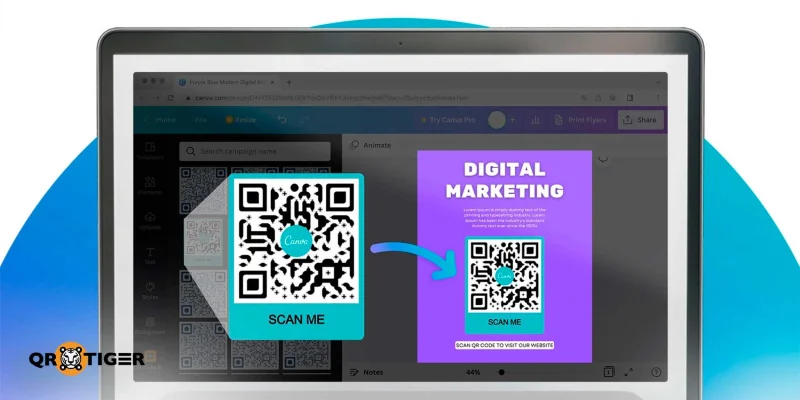
jpg_800.jpeg "Canva QR code poster")